Logging In to SpicyChat
To log in to SpicyChat, head to the official site and use your email for a sign-in code or choose from Google, Apple, X, or Discord. All options are passwordless, so you won’t need to remember another password.
SpicyChat login in a few steps
Getting back into SpicyChat is quick—no need to dig up an old password. Returning users can pick from several sign-in options at the top of the official site. Here’s the fastest way:
1. Go to the SpicyChat homepage (spicychat.ai).
2. Click the login button at the top of the page.
3. Choose your preferred sign-in method: email code, Google, Apple, X, or Discord.
4. If using email, enter your address and check your inbox for the sign-in code.
5. Enter the code to access your account.
6. If using Google, Apple, X, or Discord, follow the prompts to authorise access.
You’ll be chatting with your favourite AI companions again in less than a minute—provided your inbox hasn’t become a black hole.
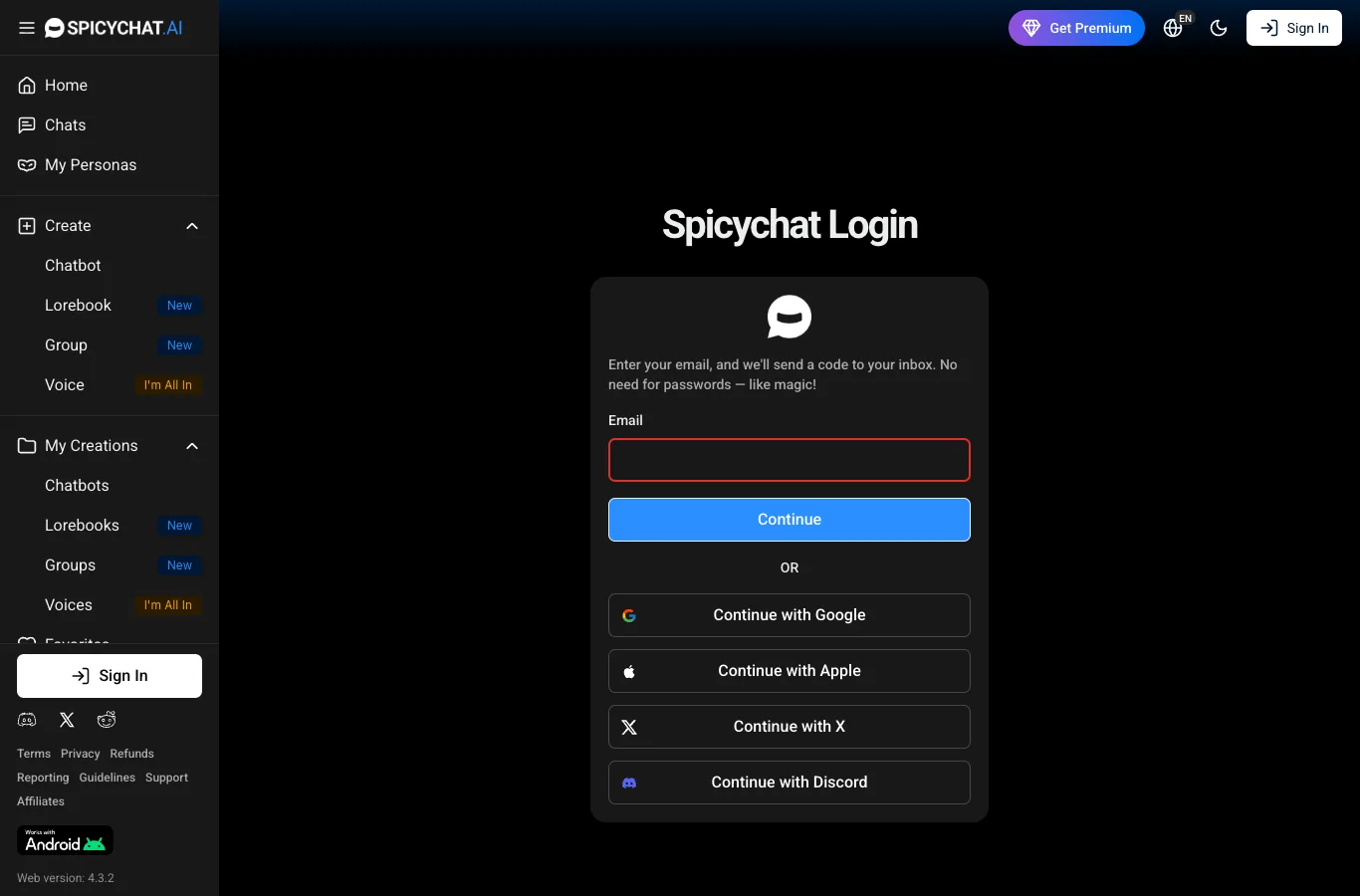
SpicyChat login options
SpicyChat offers several ways to sign in, each with its own privacy considerations. Here’s a summary:
| Login Method | Privacy Level | Notes |
|---|---|---|
| Email (sign-in code) | High | No passwords stored; uses your inbox. |
| Moderate | Shares your Google profile email. | |
| Apple | High | Option to hide your email from SpicyChat. |
| X (Twitter) | Moderate | Shares basic X account info. |
| Discord | Moderate | Shares Discord account details. |
Choosing email or Apple offers the most privacy, especially if you use a secondary email or Apple’s privacy relay.
Using SpicyChat on mobile
SpicyChat works across devices, though the approach differs slightly by platform. Android users can install the official APK directly from the SpicyChat website. For iPhone, there isn’t a native app—Safari users can add the web app to their home screen for a more app-like feel. Logging in on mobile uses the same passwordless process as desktop, so you can switch between your phone and computer without hassle. Just remember: the login code will go to your chosen email inbox, regardless of device.
Logging out and deleting your account
Logging out simply signs you out—your chat history and account remain intact. Cancelling a subscription stops future payments but keeps your account (and chats) active at the free tier. Deleting your account removes all your data and chat history from SpicyChat. If you’ve subscribed, always cancel your subscription first to avoid extra charges, then follow the account deletion process from within your account settings on the official site. You’ll find both options in the menu after logging in.
Still can't log in? Contact support
If you’re stuck, SpicyChat support is available around the clock. The fastest help comes via the official Discord, but there’s also a support form on their website. Include these details to speed things up:
- The email address or social login used
- A description of your login issue
- Screenshots of any error messages (if safe to share)
- The device and browser you’re using
- When the problem started
As an independent review site, we can’t access or fix accounts, so reaching out to the official support team is your best bet.
FAQ
Can I log in to SpicyChat with Google?
Yes, you can sign in to SpicyChat using your Google account. This option is available on the official login screen alongside other social sign-in methods.
Can I log in to SpicyChat on my phone?
Absolutely—SpicyChat supports mobile logins. Use the web app on iPhone (add to home screen for best results) or install the official APK on Android from the website.
Is this the official SpicyChat login?
No, this is an independent review site, not the official SpicyChat platform. For the real login, go directly to spicychat.ai and follow the sign-in instructions there.
Why can't I log in to SpicyChat?
There could be several reasons: an expired or mistyped sign-in code, a blocked email, or a technical issue. Check your inbox (including spam) and try again, or contact official support if you’re still locked out.