How to Log In to SpicyChat
- Use passwordless sign-in: enter your email to receive a code, or continue with Google, Apple, X, or Discord.
- Find the login button at the top of the official site to start.
- If you run into trouble, check your email spelling and try switching devices or browsers.
Common login problems and fixes
Sometimes logging in isn't as smooth as you'd hope, but most hiccups can be solved easily. Here's a quick symptom-and-fix table to help you get back to chatting quickly:
| Symptom | Likely Cause | Fix |
|---|---|---|
| Code email never arrives | Wrong email, spam filter | Double-check email, look in spam/junk folder |
| Stuck on loading screen | Cookies/cache problem | Clear cookies/cache, restart browser |
| Login screen doesn't appear | VPN or browser extension interference | Disable VPN/extensions, refresh page |
| Region error or restricted access | Regional block or network restriction | Try another network or wait, contact support |
| Age confirmation reappears | Session expired or age not confirmed | Ensure you tick the 18+ box, refresh browser |
If you still can't sign in after these steps, reaching out to the support team via their Discord or the website form is usually the most direct way to get help.
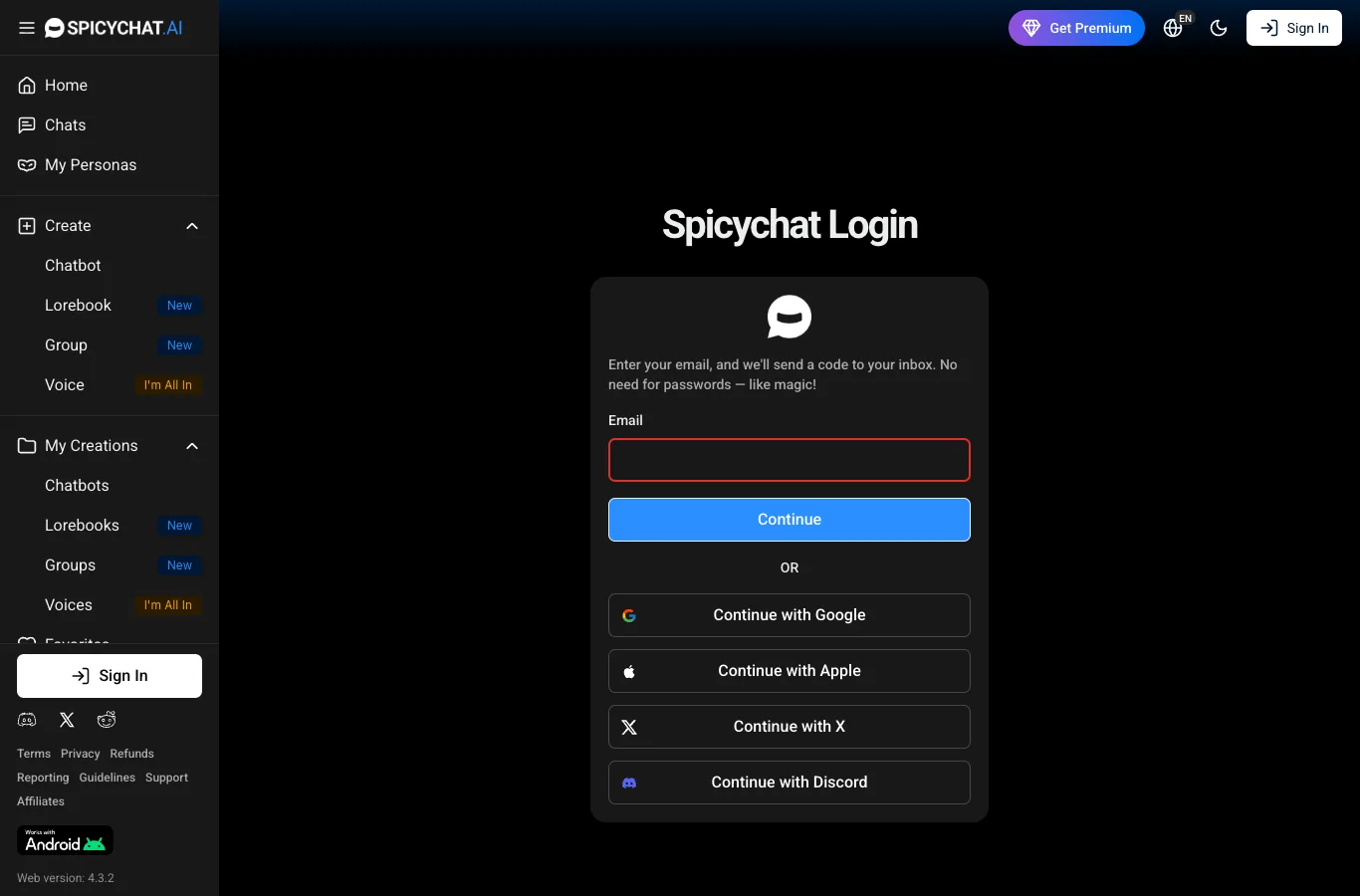
SpicyChat login in a few steps
Logging into SpicyChat is pretty straightforward, and you'll know exactly where you stand at each step. Here’s how the process goes after signing up:
- Go to the official SpicyChat site and find the login button at the top.
- Choose your preferred sign-in method: enter your email for a code, or continue with Google, Apple, X, or Discord (all options are shown on the screen).
- If using email, enter your address and submit; wait for the code to appear in your inbox (check spam if it’s missing).
- Enter the sign-in code on the site; you’re in!
- First time on a new device or browser? You might need to confirm you’re over 18 before exploring.
It's pretty quick and doesn't require remembering a password, which I find refreshingly simple.
Creating a SpicyChat account
Signing up for SpicyChat starts with confirming you’re 18 or older, a must for access to their adult-oriented AI companions. The registration flow asks for your email, or lets you sign up via Google, Apple, X or Discord if that's easier for you. Once you finish this step, you get instant access to the full range of community-created chatbots with no cost to start. On the free plan, you can send unlimited messages, make your own chatbots, and enjoy a generous 4K context memory (handy for ongoing stories) — all with some ads and occasional queues. There are premium plans if you want more features, but you genuinely get a taste of everything straight away.
Using SpicyChat on mobile
Switching from desktop to mobile is easy, though the experience depends on your device. For Android, the official app comes as an APK from the SpicyChat website — just download and install it directly from spicychat.ai (not on Google Play). iPhone users are guided to add the web app to their home screen, with Safari strongly recommended for best results. Here’s what you do:
1. Open spicychat.ai on your mobile browser.
2. Tap the login button at the top.
3. Choose your sign-in method: email code, Google, Apple, X, or Discord.
4. Enter your sign-in code or authorise your account with your chosen provider.
5. Once logged in, the mobile web interface or APK gives you near-complete feature access.
So you can move between phone and PC with the same account, and your conversations and personas go with you.
Log out, cancel, delete — what's the difference
Logging out of SpicyChat just signs you out for the moment, keeping your account and chat history safe for when you next log in. Cancelling your subscription stops any future billing but leaves your account, bots, chats and settings untouched. If you decide to leave SpicyChat for good, account deletion wipes your data from the system completely. It’s important to cancel any active subscription before you delete your account, or you might keep getting charged until the deletion is processed. Cancellation and deletion options are found via the settings or help menus after logging in — be sure you’re certain before confirming deletion, as it can't be undone.
Once you're signed in
After logging in, you’re greeted with a lively home page showcasing the most popular AI companions and roleplay chatbots. Here are some things you’ll find:
- Tag filters for theme, roleplay type and style so you can find exactly your fantasy
- SFW and NSFW categories clearly separated
- Option to create your own chatbot persona or multiple personas (up to your tier limit)
- Group chat scenes with up to 10 bots at once
- Memory Manager to review and pin details from your conversations
- Image scene generation and extra-long context (if you’re on a paid tier)
It’s very much a pick-your-adventure experience right from the start.
FAQ
How do I delete my SpicyChat account?
After logging in, find the account or settings menu where you’ll see the option to permanently delete your account. If you have an active subscription, cancel it first; deletion erases your data and chat history.
How do I reset my SpicyChat password?
SpicyChat uses passwordless login, so you don’t need (or reset) a password. Instead, simply enter your registered email on the login page and you’ll get a new sign-in code via email.
Why can't I log in to SpicyChat?
Common reasons include wrong email, issues with cookies or extensions, regional restrictions, or an expired code. Double-check your login info, clear your browser cache, or try a different browser or network if possible.
Can I log in to SpicyChat on my phone?
Yes, simply visit spicychat.ai in your mobile browser. Android users can also install the APK from the official site; iPhone users can add the web app to their home screen for easy access.
Can I log in to SpicyChat with Google?
You can log in or sign up with Google, Apple, X, or Discord in addition to the standard email code method. All available options appear on the official login screen.